n8n automations for small business admin: my free templates (and why they are not about saving time)
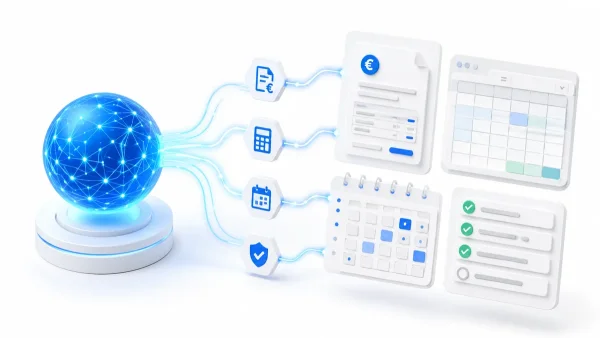
The n8n automations from my back office, made generic and published as free templates: Aruba e-invoices, mileage reimbursement, month-end for the accountant and the guardian that watches over them. They do not save time: they stop you forgetting.

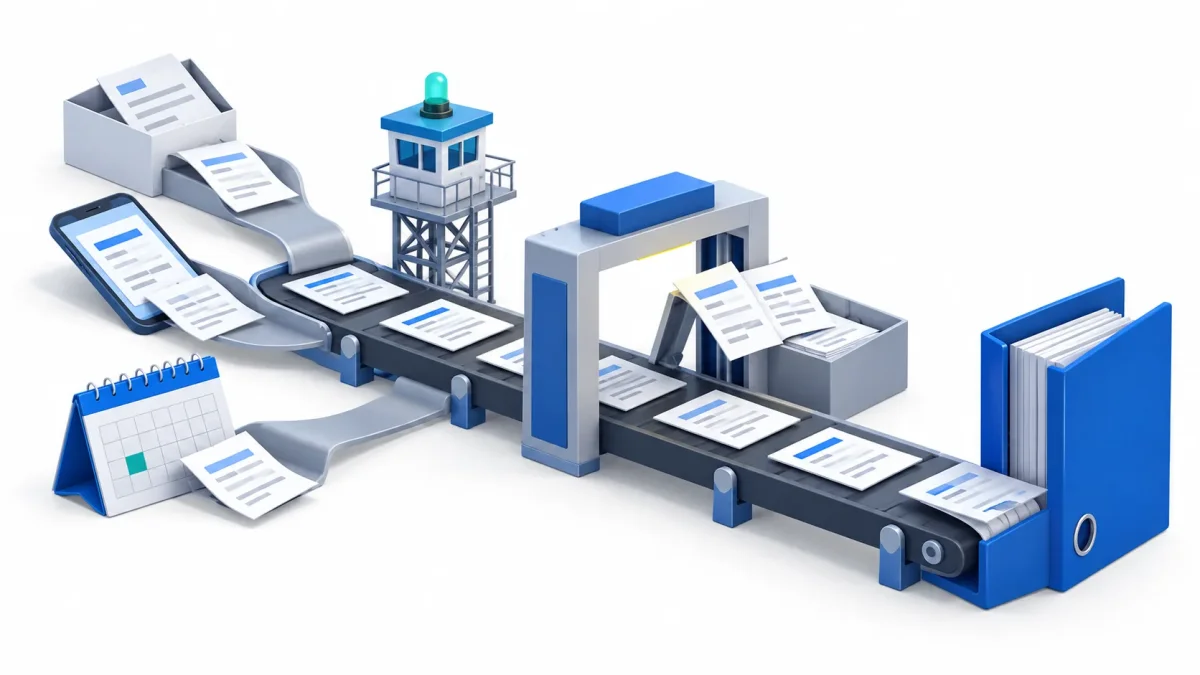
The n8n automations a small business needs for its admin are the ones that read documents for you and check that nothing is missing: incoming e-invoices, mileage reimbursement, the month-end close for the accountant, and a guardian that warns you when one of them stops. I have published them as free templates in the n8n gallery.
They come from the automations I use in the back office of Castaldo Solutions, made generic so they work in your company too. On 28 October 2026 n8n approved the last three, and the templates published under my name became six. I am a verified n8n creator: n8n gave me the status when its team approved my third template.
And that is the thesis of this article: these automations do not save me time, they stop me forgetting.
Why automate admin work if it only saves a few minutes?
Because the real cost was never the minutes, it was the mistakes. The time admin took from me was small, a matter of minutes, but scattered across the days, and that meant mistakes of forgetting. Before, there were at least 2-3 invoices a month that I completely forgot, so they never made it into the books.
The problem grew with the number of suppliers. More suppliers means more streams of documents, arriving by email, by PEC (Italian certified email) and in other places, on different devices: lost time and rising entropy.
That is why I see them as a quality optimisation, not a time one. And quality is measured in mistakes: with these automations nothing is left to chance anymore. Now I no longer read the documents myself: the automation does it, and when the automation fails, the guardian takes care of it.
In the article on which process to automate in a small business the criterion is what it costs every month in hours, mistakes and missed opportunities. In my admin the hours were few. The cost was in the mistakes.
What do the n8n templates in the admin starter pack do?
The starter pack has five templates: four are for admin, the fifth is for whoever collects leads. The four admin ones share the same shape: they read a source, run checks before anything goes out and, when something has to reach the accountant, they prepare a Gmail draft instead of sending the email themselves. They are not assistants you talk to: for AI inside Excel and Word, or a custom skill such as a payment schedule, the road is the one of AI assistants for admin.
| Template | What it reads | What it checks | What you get |
|---|---|---|---|
| Aruba e-invoices | Aruba's notices in your mailbox, usually the PEC | duplicates, amounts above the supplier's average, new suppliers | on the 1st of the month the Excel on Dropbox and the draft for the accountant |
| Mileage reimbursement | a Google Calendar for trips | declared km against the route, duplicate trips, km per day | every month the Excel and the draft, never twice for the same month |
| Month-end close | the document archive on Dropbox | wrong month, duplicates, empty files, unexpected documents | on the 5th and the 12th what is missing, when the month is complete a single draft |
| App guardian | errors and heartbeats from the other automations | new or repeated errors, apps gone silent | alerts, a warning when an error repeats, back online, digest |
| AI pre-assessment | a 14-question form | invented figures and promises in the AI-written report | the report to the respondent, the lead to you |
Aruba e-invoices: the AI picks the category, once per supplier
The workflow reads the new e-invoice notices that Aruba, the Italian provider, sends to your mailbox, usually the PEC (Italian certified email), without marking them as read. Every invoice goes through three checks: the same invoice arriving twice, an amount far above that supplier's average over the last 12 months (by default one and a half times, and the threshold can be changed), a supplier never seen before. An invoice to check reaches your inbox right away. Only for new suppliers does OpenAI pick the expense category from your own list: one call per supplier, not per invoice, and if you fix a category in the table the reports follow it. On the 1st of the month the Excel goes to Dropbox and you find in Gmail the draft for the accountant, with totals by category compared with the previous month. The e-invoice template in the n8n gallery.
Mileage reimbursement: the calendar is the logbook
On the 1st of the month the workflow reads last month's trips from a dedicated Google Calendar. A title such as Departure > Arrival, km, purpose is read directly; an event written in plain words, such as "Client visit in Bergamo", is read by OpenAI, which never invents a departure. Missing km are calculated with OpenStreetMap, with no API key. Then three checks: km written far from the route, the same trip twice on the same day, days with too many km. The result is an Excel with one row per day and the rate per km (in Italy usually the one from the ACI tables for your car). The month is recorded in a table, so the draft for the accountant is prepared only once. The mileage template in the n8n gallery.
Month-end close: what is missing and what is out of place
Every morning the workflow copies the Dropbox archive, by year and month, into the Google Drive folder you share with the accountant: it only adds files, it never overwrites or deletes. On the 5th and the 12th it checks last month against a table of expected documents. OpenAI reads every new document once and says what document it is, which month it refers to and who issued it; the reading is repeated only if the file changes. The checks: documents from another month, duplicate files, empty files or broken PDFs, unexpected documents. You get what is missing; when the month is complete, the draft for the accountant with the document index is waiting in Gmail, only one per month. The month-end template in the n8n gallery.
The app guardian: it watches over the other automations
Every app, whether an n8n workflow, a script or a backup, sends its errors and a periodic heartbeat to a single web address (a webhook). Every error gets a fingerprint: numbers, ids and dates are stripped, so "job 4821 failed" and "job 4822 failed" are the same error. A new fingerprint goes to OpenAI once, which returns the probable cause, the first thing to check and the severity. Tokens, passwords and keys are masked before anything is saved or sent. Urgent errors reach you at once, those repeating past the threshold reach you as an escalation, an app silent for too long triggers a warning, and when it comes back an email tells you how long it was quiet. The guardian template in the n8n gallery.
AI pre-assessment for small businesses: the fifth one, for lead collection
This one is not admin: it is for consultants, agencies and IT partners who help small businesses adopt AI. A 14-question form; fixed rules turn the answers into five scores from 0 to 5. OpenAI writes the personal part of the report, and a check stops it if it contains figures the respondent never gave, or promises: the AI rewrites it once, then standard tips go out. Bots and disposable addresses are stopped before any call. The pre-assessment template in the n8n gallery.
The sixth template, outside the pack, sends the leads of a web form to Odoo CRM, with source, medium and campaign: it comes from the workflow behind the form on this website.
How do you notice when an automation stops?
Building them with n8n was much simpler than I expected. What worried me was something else: noticing when an automation fails, that is, being able to watch the executions and be alerted about errors. That is where the guardian comes from.
So the templates have two lines of defence. Each of the five has a branch that emails you if the workflow itself stops. The guardian covers the rest: it also watches scripts and backups running on other machines, and it notices silence, meaning an automation that stops running without producing any error.
Can a business owner with no n8n skills install them alone?
Yes, by following the notes inside the workflow. Every template has a yellow note with the full description, one note per step and a Settings node with all the settings. There are four steps:
- Import the template into your n8n instance from its page in the gallery.
- Connect the accounts the workflow uses (Gmail, OpenAI, Dropbox, Google Drive or Google Calendar) in n8n's credentials: the published templates contain none.
- Fill in the Settings node: your email, the accountant's, the folders, the thresholds of the checks. The tables it needs are created by the workflow itself.
- Test it, then activate it. The mileage reimbursement and the month-end close have a test mode: you run them on a past month, you get the full summary, and no draft is created until you switch to the real mode.
Before the four steps you need an n8n instance with data tables, in the cloud or installed on your own server (the difference is in the comparison of n8n, Zapier and Make) and, for the invoices, Aruba e-invoicing with email notices.
If you would rather not do it yourself, we set them up for you.
Where should an automation's keys be kept?
In an encrypted vault. In our company we use Bitwarden, a vault with encrypted information, and the workflows' connections link back to n8n's credentials and to the vault. Every company should do this. And do not leave everything to vibe coding.
An admin automation touches the PEC, the mailbox, the document archive and the OpenAI account. What happens when secrets end up in the wrong place is in my guide to vibe coding security.
What changes for the accountant?
Every month they receive three things in order: the invoice Excel by category, the mileage reimbursement, the shared folder with the document index. No email goes to them on its own: the workflow prepares the draft, and you are the one who reads it and presses send.
My accountant saw flow and precision increase, and complimented me on it.
Whether through Claude or through a simple configuration in n8n, workflow automation in companies is getting easier and easier. And what I am doing is the proof.
Where should you start with admin automation?
Each template works on its own. If the cost is in the mistakes, you start from the mistake that happens most often. If you forget invoices, from the invoice workflow; if a document is always missing at month end, from the month-end close; if you already have automations running, from the guardian.
All six templates are also collected in the Open Lab, with the rest of what we publish in the open. If you would rather not touch them, we set them up for you.
Frequently asked questions
Are the n8n templates for admin free?
Yes. The five templates of the starter pack, and the sixth one for Odoo, are published free in the official n8n gallery and can be imported into your instance from each template's page. What you pay for are the services the workflows use: the n8n cloud subscription, or the server you install it on, and your OpenAI usage. OpenStreetMap, used for the km, is free within its usage policies.
Do you need technical skills to install an n8n template?
You do not need n8n skills. Every template in this pack has a yellow note with the full description, one note per step and a Settings node holding all the settings, from the accountant's email to the thresholds of the checks. A business owner with no n8n skills can install them alone by following those notes. You need an n8n instance with data tables and accounts for the services the workflow uses. If you do not want to do it yourself, you can have them set up for you.
Do the automations email the accountant on their own?
No. The invoice, mileage and month-end workflows prepare a Gmail draft, with the Excel or the document index, and you are the one who reads it and presses send. The mileage reimbursement and the month-end close record the month in a table, so the draft for the same month is never prepared twice. The emails that go out on their own are the ones for you: invoices to check, missing documents, the guardian's alerts.